Ad-free games for kids — how to check before you hand the tablet over
In an app store, “no ads” means nothing on its own. Here are three minutes of work that will save you a week of being asked for gems.
You know the moment. Your child gets the tablet for twenty minutes, and a quarter of an hour later they come back asking whether they can buy a coin pack. Or worse — they don’t come back, because they’ve just watched a thirty-second ad for another game where somebody is shooting.
The app had five stars and the words “for kids” on it.
The problem isn’t that parents choose badly. The problem is that the information you need in order to choose is deliberately hard to find. Below is where to look and what exactly to check before a game reaches your child’s screen.
Why a “free” game is almost never free
Start with the arithmetic. Keeping a mobile game running costs money: servers, updates, staying compatible with each new OS version. If you aren’t paying for the app, the money has to come from somewhere else. In practice there are three sources:
- Ads — usually video you can’t skip for the first five seconds. For a child aged four to seven, the line between the game’s content and the ad essentially doesn’t exist. They aren’t “watching an ad” — as far as they’re concerned, they’re still playing.
- In-app purchases — in-game currency, skins, “unlock all levels”. The mechanics are designed to make a child feel a lack. It’s no accident that the progress bar stalls exactly where the payment starts.
- Data — the advertising identifier, the list of installed apps, approximate location. Sold onward in a model no parent ever sees.
There’s a fourth possibility — that somebody built a game because they wanted to give it to their own child, and then shared it — but it’s rare. Which is exactly why it’s worth knowing how to spot it.
Step 1: read the store label, not the description
The description is written by marketing. The labels are written by the platform, and you can’t lie in them without consequences.
On Google Play, scroll to the bottom of the listing, to the Data safety section. Two lines matter: what data is collected and what data is shared. A game that doesn’t need an account has no reason to collect “identifiers”. If it collects them, it collects them for somebody.
Right next to that you’ll find Contains ads and In-app purchases. Those are platform labels. An app whose description says “no ads” while the label underneath says “Contains ads” is simply lying in the description — the label is the part that’s true.
On the App Store the section is called App Privacy and works much the same way. Also check the subtitle under the download button: “In-App Purchases” appears there whenever there’s at least one.
That takes thirty seconds and eliminates most candidates.
Step 2: check whether the game runs in airplane mode
This test is the most underrated one, and it tells you the most.
Install the game, turn on airplane mode and launch it again. Three possible outcomes:
- The game runs normally — there’s nothing to display and nothing to send. That’s the strongest evidence you can get without reading the code.
- The game runs, but there’s an empty frame where an ad should be — the ads are there, they just have no connection right now.
- The game won’t start, or asks for internet — even though it logically doesn’t need it (a puzzle, counting, coloring). In that case it needs the internet for somebody other than your child.
You also learn something practical along the way: whether this game will be any use in the car, on a train, and at grandma’s house where coverage tends to be theoretical.
Step 3: play it yourself for ten minutes
This isn’t about judging the graphics. It’s about finding the friction point — the place where the game stops being a game and becomes a sales funnel.
What to watch for:
- After a loss, does an offer appear to “watch a video to continue”?
- Is there a timer, or an “energy” bar that runs out?
- Is there a store icon, a gem, a coin with a plus sign anywhere on screen?
- Can you get from the game to an external website with nothing standing in the way?
That last point matters more than it looks. A well-built children’s app puts a parent gate in front of any exit — usually a simple piece of arithmetic like “7 × 8”. A young child won’t get through it; an adult gets through in two seconds. The presence of that gate is a signal that somebody actually thought about who is holding the device.
Step 4: check who’s behind it
Open the publisher’s site — the link is on the app listing. You’re looking for the answer to one question: how does this person or company make money?
If the site has pricing, support for institutions, a “buy me a coffee” button, or a plain “this app is free because I built it for my own child” — you know where you stand. If the site is a landing page with a download button and nothing else, the business model is hidden somewhere else. Usually in ads.
Check the privacy policy too. You don’t have to read all of it — use search (Ctrl+F) on three words: “advertis”, “partner”, “analytic”. If those words show up in the context of passing data to third parties, that’s your answer.
The checklist
Before you hand your child a new game:
- The store label doesn’t say “Contains ads”
- The label doesn’t say “In-app purchases”
- The Data safety section lists no identifiers and no shared data
- The game runs in airplane mode
- Ten minutes of play turned up no store and no energy meter
- Any exit to an external site is behind a parent gate
- The publisher has a site that shows how they keep the lights on
Seven items, a few minutes. They guarantee nothing outright, but a game that passes all seven is in an entirely different class from the average search result.
A separate matter is games that carry no ads but still demand a connection — how to check whether an app really works offline is covered in the piece about travel.
What you can’t check from the outside
Honestly: there are a few things you can’t verify.
You won’t see whether the app changes its model in six months — a free game sometimes gets bought by a larger player and ads turn up in the next update. That’s why it’s worth repeating the airplane-mode test occasionally on the games your child plays regularly.
You also won’t see exactly what happens inside. All you can check is whether the app needs a connection at all. A game that sends nothing because it has nowhere to send it is safe structurally, not on a promise.
How KidRoles: Shop does on this test
Since I’m writing this on my own game’s site, it seems fair to run my own test.
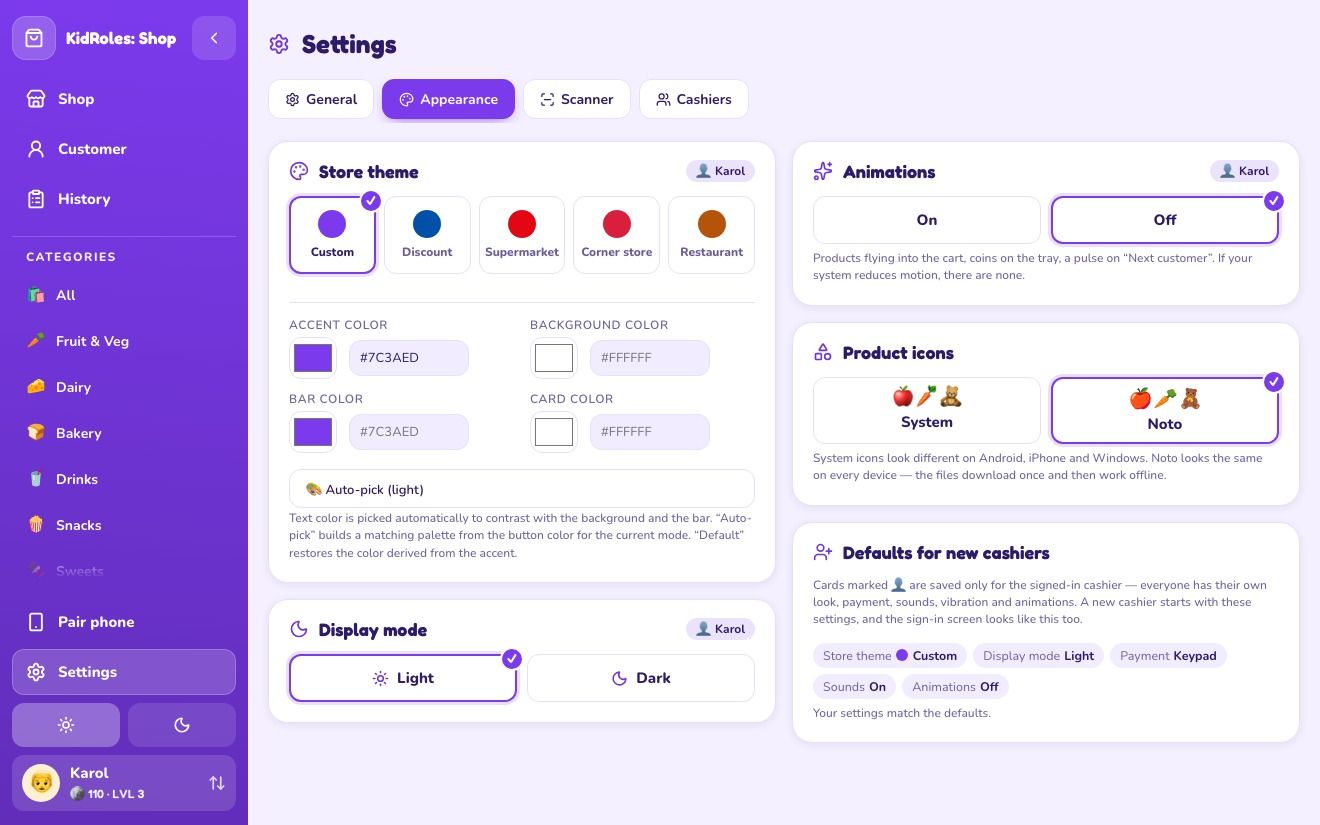
KidRoles: Shop is a pretend store game: your child adds items to a cart, totals the prices, takes payment and makes change. A phone can act as a wireless barcode scanner paired with the tablet that serves as the register.
- No ads — there’s nothing in the code to display.
- No in-app purchases; at home the game is completely free.
- It runs offline, because all the data sits in the device’s own storage. There’s no account, so there’s nothing to create and nothing to send.
- Outbound links (support, feedback) sit behind a parent gate with simple multiplication.
You can run the airplane-mode test right now: turn it on and open the game. It should make no difference.
This isn’t an argument that KidRoles is the best one. It’s an argument that this can be checked — and that it’s worth checking every other game that lands on your child’s screen the same way.
Picking the game is only half of it, anyway. The sentence “that ad wants you to want this — somebody paid for it” does more for a child than the best filter, and it’s part of a wider conversation about money: where to start with teaching kids about money.
Common questions
How can I check for ads before installing?
On Google Play and the App Store, the label next to the install button states “Contains ads” and “In-app purchases”. The description is written by the publisher and tends to be optimistic; the label is a declaration made to the platform, which is why you read it instead.
Does a paid game definitely have no ads?
Not always. Some paid games still have in-app purchases, and some add ads in a later update. It’s worth repeating the test now and then on the games your child plays regularly.
Why is a free game not actually free?
Because somebody has to pay for building it. Either an advertiser pays for your child’s attention, or a parent pays through in-app purchases, or a data broker pays for the advertising identifier. The question isn’t whether we pay, but what we pay with.
What can’t you check from the outside?
You can’t see whether the app will change its model in six months, or exactly what its code does. What you can check is whether it needs a connection at all — a game that sends nothing because it has nowhere to send it is safe structurally, not on a promise.