Cash register game for kids — free, no ads, works offline: what to look for
Most “kids cash register” results are plastic toys, and most of the apps only run on an iPad. Here’s how to tell which option actually fits your child — and your devices.
Search for a “kids cash register” and you get a wall of plastic: registers with a scanner, a calculator, a microphone, a conveyor belt. Search for a cash register game and you get iPad apps and browser games, most of which say “free” somewhere on the page.
The useful question isn’t which one is best. It’s what your child is supposed to practice at that register — and whether the thing you pick can actually check it. Below I compare four kinds of option: a toy register, apps from the app stores (App Store, Google Play), other browser games and our own app, KidRoles: Shop. I don’t name other people’s products — this is a guide to the kinds of options, not a ranking. In fairness: this is written on my own game’s site, so for every option I say where the information comes from and when I checked it. At the end: how to combine a toy register with an app.
What to look for
Five things separate a cash register game that teaches from one that just keeps a child busy:
- It works offline. Turn on airplane mode, close the game completely and open it again. If it plays exactly the same, there’s nothing to show and nothing to send. The full test is in offline games for kids.
- No ads, no in-app purchases. Read the store label (“Contains ads”, “In-app purchases”, App Privacy), not the description — how to read it is in ad-free games for kids.
- No account for the child. A pretend store doesn’t need an email address. If it asks for one, ask why.
- It checks the change. From about six, the skill is adding up and counting up to the amount paid. A game that just shows the answer does the math for your child.
- It runs on what you own. If your home or classroom runs on Android or Chromebooks, iPad-only apps are out before you start.
Four options
A toy cash register
Plastic or wooden. Many models come with a calculator, a scanner that beeps, play bills and coins and a pretend credit card. Manufacturers usually label these sets for ages 3 and up.
Good: no internet, no screen, no ads, no account. For a preschooler, holding a real object and hearing the drawer pop open is most of the fun — and most of the learning.
Not so good: it can’t check change, and it doesn’t grow with your child. A child typing prices into a calculator is practicing typing, not adding.
Apps from the app stores (App Store, Google Play)
The app stores have plenty of pretend store and cashier apps. Three that came up near the top of App Store search on November 3, 2026 differ more than their names suggest:
- the first is paid up front, with no in-app purchases, and English only;
- the second is free, with an in-app purchase that unlocks more stores;
- the third, aimed at toddlers (ages 0–5), is free to start and then runs on a subscription after a trial.
Two of the three carry the App Privacy label “Data Not Collected”. I checked only the App Store. On Google Play, check the same things: the “Contains ads” and “In-app purchases” labels and the Data safety section.
Good: polished art, often many themed shops.
Not so good: the ones I checked run on Apple devices only, and some are English only. The payment model has to be checked app by app — from a one-time price to a weekly subscription.
Other browser games
Games you open in a browser, with nothing to install. They run on any device with a browser, Android and Chromebooks included. An example: a free shopkeeper game for ages 4–10 that I checked. Kids “scan” items by tapping them on the screen, take payment and give change. The developer says there are no ads, no purchases and no sign-up.
Whether a browser game really works offline is easy to check yourself: open it, turn on airplane mode and reload the page.
Good: runs on any device with a browser — tablets, laptops, the interactive whiteboard. Nothing to install.
Not so good: in the game I checked, the shops come ready-made and scanning means tapping an item on the screen, so you can’t ring up the cereal box from your kitchen.
KidRoles: Shop
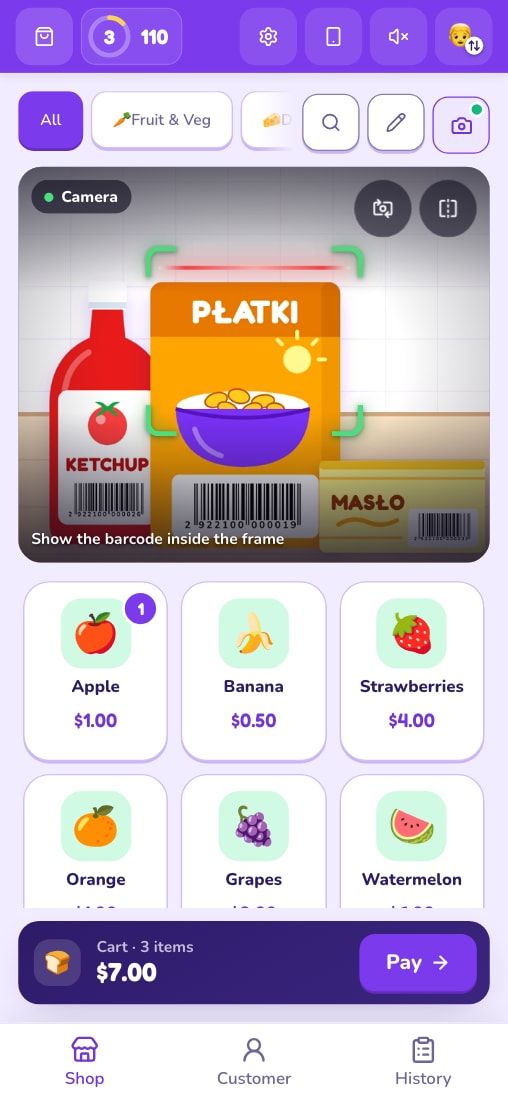
Our app, so read this as the maker’s description. A tablet or laptop is the register. The device camera reads barcodes — including the ones on real packaging — and a phone can be paired with the register as a wireless scanner. Your child totals the items, takes payment and makes change. In Customer mode they serve a line of customers and count the change out of a coin tray; the app checks the answer and pays out coins and cashier levels.
It runs in the browser and installs from it like an app (a PWA): on iPad, iPhone, Android, Chromebook, Windows and macOS. There’s no App Store version, and a Google Play version is in preparation. After the first visit it works offline; the network is only needed to pair a phone as a scanner. On a Windows PC or a Mac you install it from Chrome, Edge or Safari — see how to install KidRoles on a computer.
No account, no ads, no in-app purchases. Play data stays on the device; the app sends only an anonymous usage counter, with no identifier and no child data, which a parent can switch off in Settings.
Prices in dollars, pounds, euros or złoty, and nine languages. Best from age 6; younger children can scan alongside a parent.
Not so good: you need a tablet, laptop or phone, and the art is simpler than in some store apps. For a three-year-old, the plastic register is honestly the better toy.
Side by side
| What to check | Toy cash register | Apps from the app stores (App Store, Google Play) | Another browser game | KidRoles: Shop |
|---|---|---|---|---|
| Works offline | yes | depends on the app | check in airplane mode | yes, after the first visit; pairing a phone needs the network |
| Ads | none | depends on the app — check the store label | none (per the developer) | none |
| In-app purchases | n/a | none, one-off unlocks or subscriptions | none (per the developer) | none |
| Data and account | none | check the privacy label in the store; two of the three I checked: “Data Not Collected” | no account; anonymous site analytics | no account; data stays on the device; anonymous usage counter you can switch off |
| Age | usually 3+ | from 0–5 to 9–11 (App Store labels) | 4–10 | 6+; 4–5 with a parent |
| Scanner | toy scanner that beeps | usually tapping the screen | tapping the screen | device camera or a paired phone; real barcodes |
| Currency | play bills and coins in the set | rarely stated | several, including $, € and £ | $, £, € or złoty |
| Price | one-time toy purchase | free with purchases to paid | free | free at home |
| Runs on | no device needed | a phone or tablet on that system; the ones I checked: Apple only | any browser | any browser (PWA); Google Play in preparation |
Which one, then?
- Ages 3–5: a toy register. Add real packaging from the pantry and handwritten price tags — playing store with kids has seven setups by age.
- Ages 6–9, at home: a game that checks change and runs on your own devices. If you want to scan real packaging, you need a camera scanner.
- In a classroom: whatever runs on the school’s devices without accounts. A whiteboard game works as a whole-class starter; a register with scanning works as a center.
How to combine a toy register and an app
It doesn’t have to be either-or. The plastic register at four, and two years later the same store on the rug with a tablet as the register, real boxes on the shelf and a phone as the scanner. The order that works for change itself is in teaching kids to make change.
Sources (accessed November 3, 2026)
- Store apps: the App Store listings of three pretend store and cashier apps (price, in-app purchases, privacy and age labels) and one developer’s site.
- Another browser game: the developer’s pages (home, for parents and teachers, about, privacy policy).
- Toy registers: toy makers’ product pages for features and age labels.
- KidRoles: Shop: FAQ and privacy policy.
Common questions
Is there a free cash register game for kids with no ads?
Yes. KidRoles: Shop is free at home, with no ads and no in-app purchases, and one other browser game I checked says the same. Among apps from the app stores it varies: some are paid up front, some are free with purchases inside, and some run on subscriptions — check the store label before installing.
Is there a kids cash register app for Android or Chromebook?
Most pretend store apps in search results are iPhone and iPad only. Browser games work anywhere: KidRoles: Shop runs in the browser and installs from it like an app (a PWA) on Android, Chromebook, Windows, macOS and iPad. A Google Play version is in preparation; there is no App Store version.
Does a toy cash register teach kids to count money?
It teaches the routine of a purchase. The counting is up to the adult: a register with a calculator shows the total, but it can’t tell your child whether the change was right. That’s fine for preschoolers; later it helps to add something that checks the answer.
What does KidRoles: Shop cost?
Nothing at home. There are no ads, no in-app purchases and no account. Schools that need a rollout on several devices or an invoice can write to us.